<?xml version="1.0" encoding="utf-8"?><feed xmlns="http://www.w3.org/2005/Atom" ><generator uri="https://jekyllrb.com/" version="3.10.0">Jekyll</generator><link href="https://command-tab.com/feed.xml" rel="self" type="application/atom+xml" /><link href="https://command-tab.com/" rel="alternate" type="text/html" /><updated>2025-11-29T04:51:55+00:00</updated><id>https://command-tab.com/feed.xml</id><title type="html">Command-Tab</title><subtitle>Static site content</subtitle><entry><title type="html">Running Nuxt 3 Behind an nginx Reverse Proxy</title><link href="https://command-tab.com/2022/04/24/running-nuxt-3-behind-an-nginx-reverse-proxy/" rel="alternate" type="text/html" title="Running Nuxt 3 Behind an nginx Reverse Proxy" /><published>2022-04-24T00:00:00+00:00</published><updated>2022-04-24T00:00:00+00:00</updated><id>https://command-tab.com/2022/04/24/running-nuxt-3-behind-an-nginx-reverse-proxy</id><content type="html" xml:base="https://command-tab.com/2022/04/24/running-nuxt-3-behind-an-nginx-reverse-proxy/"><![CDATA[<p>I was attempting to run <a href="https://github.com/nuxt/framework">Nuxt 3</a> RC1 in development mode behind a local nginx reverse proxy, but ran into several issues. There are a number of reasons to run a development application server behind a <a href="https://en.wikipedia.org/wiki/TLS_termination_proxy">TLS-terminating reverse proxy</a>, including more closely mirroring a production setup, ensuring an application performs correctly when proxied, and gaining HTTPS support to enable use of  newer <a href="https://www.digicert.com/blog/https-only-features-in-browsers">HTTPS-only user-agent APIs</a>.</p>

<p>However, when nginx reverse proxies to the Nuxt server using a configuration like the following, the application will load correctly in the browser but <a href="https://vitejs.dev">Vite</a> (bundled with Nuxt) will no longer be able connect to its backend websocket server to provide hot module replacement (HMR).</p>

<div class="language-plaintext highlighter-rouge"><div class="highlight"><pre class="highlight"><code>location / {
    proxy_pass http://localhost:3000;
    proxy_set_header X-Real-IP $remote_addr;
    proxy_set_header Host $host;
    proxy_set_header X-Forwarded-For $proxy_add_x_forwarded_for;
}
</code></pre></div></div>

<p>To fix this, Vite needs to be made aware it’s being reverse proxied, and nginx needs to pass through Vite’s websocket connection.</p>

<p>In the Nuxt config (<code class="language-plaintext highlighter-rouge">nuxt.config.ts</code>), add the following Vite config:</p>

<div class="language-plaintext highlighter-rouge"><div class="highlight"><pre class="highlight"><code>vite: {
  server: {
    hmr: {
      protocol: 'wss',
      clientPort: 443,
      path: 'hmr/'
    }
  }
}
</code></pre></div></div>

<p>Vite will now use the secure websocket protocol over the same HTTPS port as the application, but it will request it at a new, distinct path.</p>

<p>In the nginx config, add a new <code class="language-plaintext highlighter-rouge">location</code> directive to match the configured Vite path (<code class="language-plaintext highlighter-rouge">/_nuxt</code> is always prepended), have it perform an HTTP Upgrade, and then reverse proxy to Vite’s websocket server, which always listens on port 24678:</p>

<div class="language-plaintext highlighter-rouge"><div class="highlight"><pre class="highlight"><code>location /_nuxt/hmr/ {
    proxy_http_version 1.1;
    proxy_set_header Upgrade $http_upgrade;
    proxy_set_header Connection "Upgrade";
    proxy_pass http://localhost:24678;
}
</code></pre></div></div>

<p>After restarting the development server and nginx, Nuxt 3 and Vite HMR work great behind nginx, which now handles TLS termination and reverse proxying of HTTP and websocket traffic.</p>

<p><strong>Update 2023-09-28</strong></p>

<p>As of Nuxt 3.7.4, the <code class="language-plaintext highlighter-rouge">nuxt.config.ts</code> configuration <a href="https://github.com/nuxt/nuxt/issues/12003#issuecomment-1738373498">is unnecessary</a>, though having the following nginx config in place avoids a WebSocket error about the WebSocket host being undefined:</p>

<div class="language-plaintext highlighter-rouge"><div class="highlight"><pre class="highlight"><code>location /_nuxt/ {
    proxy_http_version 1.1;
    proxy_set_header Upgrade $http_upgrade;
    proxy_set_header Connection "upgrade";
    proxy_set_header Host $host;
    proxy_cache_bypass $http_upgrade;
    proxy_pass http://localhost:3000;
}
</code></pre></div></div>

<p>Note the differences from the above config – the location path dropped <code class="language-plaintext highlighter-rouge">hmr/</code>, the Vite HMR port (<code class="language-plaintext highlighter-rouge">24678</code>) became the default Nuxt port (<code class="language-plaintext highlighter-rouge">3000</code>), and the <code class="language-plaintext highlighter-rouge">Host</code> header was also added (but the <code class="language-plaintext highlighter-rouge">Host</code> header is likely not critical for this scenario).</p>]]></content><author><name></name></author><category term="docs" /><summary type="html"><![CDATA[I was attempting to run Nuxt 3 RC1 in development mode behind a local nginx reverse proxy, but ran into several issues. There are a number of reasons to run a development application server behind a TLS-terminating reverse proxy, including more closely mirroring a production setup, ensuring an application performs correctly when proxied, and gaining HTTPS support to enable use of newer HTTPS-only user-agent APIs.]]></summary></entry><entry><title type="html">Building cen64 on macOS</title><link href="https://command-tab.com/2020/01/11/building-cen64-on-macos/" rel="alternate" type="text/html" title="Building cen64 on macOS" /><published>2020-01-11T00:00:00+00:00</published><updated>2020-01-11T00:00:00+00:00</updated><id>https://command-tab.com/2020/01/11/building-cen64-on-macos</id><content type="html" xml:base="https://command-tab.com/2020/01/11/building-cen64-on-macos/"><![CDATA[<p>For testing Nintendo 64 homebrew ROMs, <a href="https://github.com/n64dev/cen64">cen64</a> is the most accurate emulator (though it doesn’t run at full speed yet). Here’s how to build it from source on macOS:</p>

<ol>
  <li>Install XQuartz from the official <a href="https://www.xquartz.org/">distributed disk image</a></li>
  <li><code class="language-plaintext highlighter-rouge">brew install cmake glew</code></li>
  <li><code class="language-plaintext highlighter-rouge">git clone https://github.com/n64dev/cen64.git</code></li>
  <li><code class="language-plaintext highlighter-rouge">cd cen64</code></li>
  <li><code class="language-plaintext highlighter-rouge">mkdir build</code></li>
  <li><code class="language-plaintext highlighter-rouge">cd build</code></li>
  <li><code class="language-plaintext highlighter-rouge">cmake ..</code></li>
  <li><code class="language-plaintext highlighter-rouge">make</code></li>
</ol>

<p>If you’d like to enable cen64’s debug logging, create a debug build when running <code class="language-plaintext highlighter-rouge">cmake</code>:</p>

<div class="language-plaintext highlighter-rouge"><div class="highlight"><pre class="highlight"><code>cmake -DCMAKE_BUILD_TYPE=Debug ..
</code></pre></div></div>

<p>When running cen64 outside of an XQuartz X11 terminal, it may report:</p>

<div class="language-plaintext highlighter-rouge"><div class="highlight"><pre class="highlight"><code>Using NTSC-U PIFROM
create_device: Failed to initialize the VI.
Failed to create a device.
</code></pre></div></div>

<p>To fix this, you can run it within an XQuartz X11 terminal, or set the <code class="language-plaintext highlighter-rouge">DISPLAY</code> environment variable to something like <code class="language-plaintext highlighter-rouge">:0</code> either in your <code class="language-plaintext highlighter-rouge">.bashrc</code> file or inline during invocation:</p>

<div class="language-plaintext highlighter-rouge"><div class="highlight"><pre class="highlight"><code>DISPLAY=:0 ./cen64 /path/to/pifdata.bin /path/to/rom.z64
</code></pre></div></div>

<p><code class="language-plaintext highlighter-rouge">DISPLAY</code> needs to be set because cen64 calls <a href="https://tronche.com/gui/x/xlib/display/opening.html">XOpenDisplay</a> with a NULL display name (presumably to default to your <code class="language-plaintext highlighter-rouge">DISPLAY</code> environment variable), but if it’s not set, XOpenDisplay returns NULL and cen64 has no display within which to create a window for rendering Nintendo 64 content.</p>

<p>For extremely verbose register-level output, edit <code class="language-plaintext highlighter-rouge">CMakeLists.txt</code> and set <code class="language-plaintext highlighter-rouge">DEBUG_MMIO_REGISTER_ACCESS</code> to <code class="language-plaintext highlighter-rouge">ON</code>. Make sure to remove any cached data in <code class="language-plaintext highlighter-rouge">build/</code> to ensure your changes are reflected, then recompile and re-run.</p>

<p><strong>Update 2024-03-02</strong></p>

<p>Development on cen64 has not progressed in many months and is now considered unmaintained. <a href="https://ares-emu.net">ares</a>, a cross-platform, open source, multi-system emulator is now regarded as the best emulator for Nintendo 64 development.</p>]]></content><author><name></name></author><category term="n64" /><summary type="html"><![CDATA[For testing Nintendo 64 homebrew ROMs, cen64 is the most accurate emulator (though it doesn’t run at full speed yet). Here’s how to build it from source on macOS:]]></summary></entry><entry><title type="html">BrewBot - Sending Coffee Notifications to Slack</title><link href="https://command-tab.com/2017/09/16/brewbot-sending-coffee-notifications-to-slack/" rel="alternate" type="text/html" title="BrewBot - Sending Coffee Notifications to Slack" /><published>2017-09-16T00:00:00+00:00</published><updated>2017-09-16T00:00:00+00:00</updated><id>https://command-tab.com/2017/09/16/brewbot-sending-coffee-notifications-to-slack</id><content type="html" xml:base="https://command-tab.com/2017/09/16/brewbot-sending-coffee-notifications-to-slack/"><![CDATA[<p>At work, we have a coffee machine that serves dozens of people in the building, and it’s difficult to know when to come get fresh coffee. You might arrive when it’s empty and be tasked with making more, but the ideal situation is to arrive just as a fresh pot is being brewed.</p>

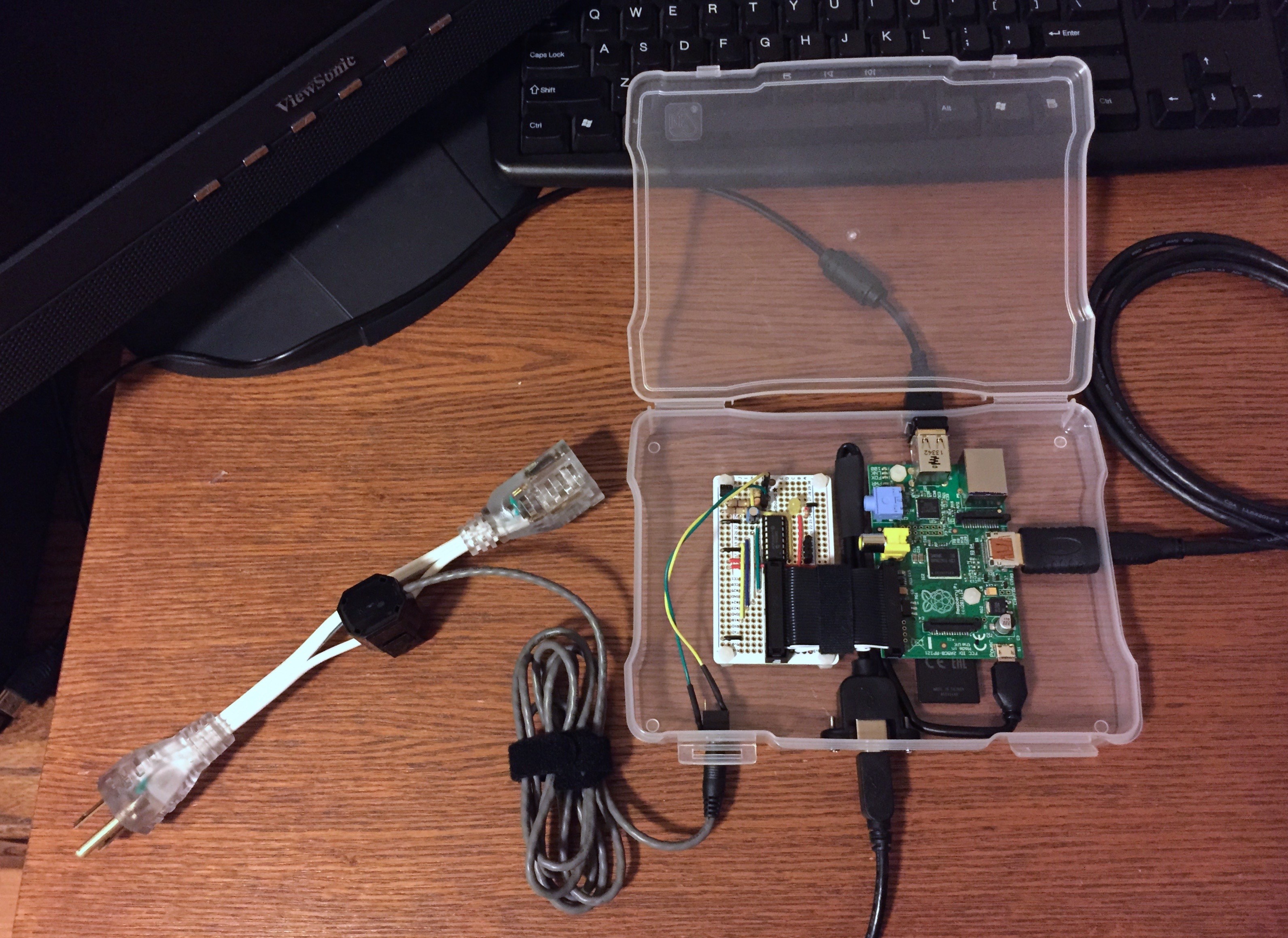
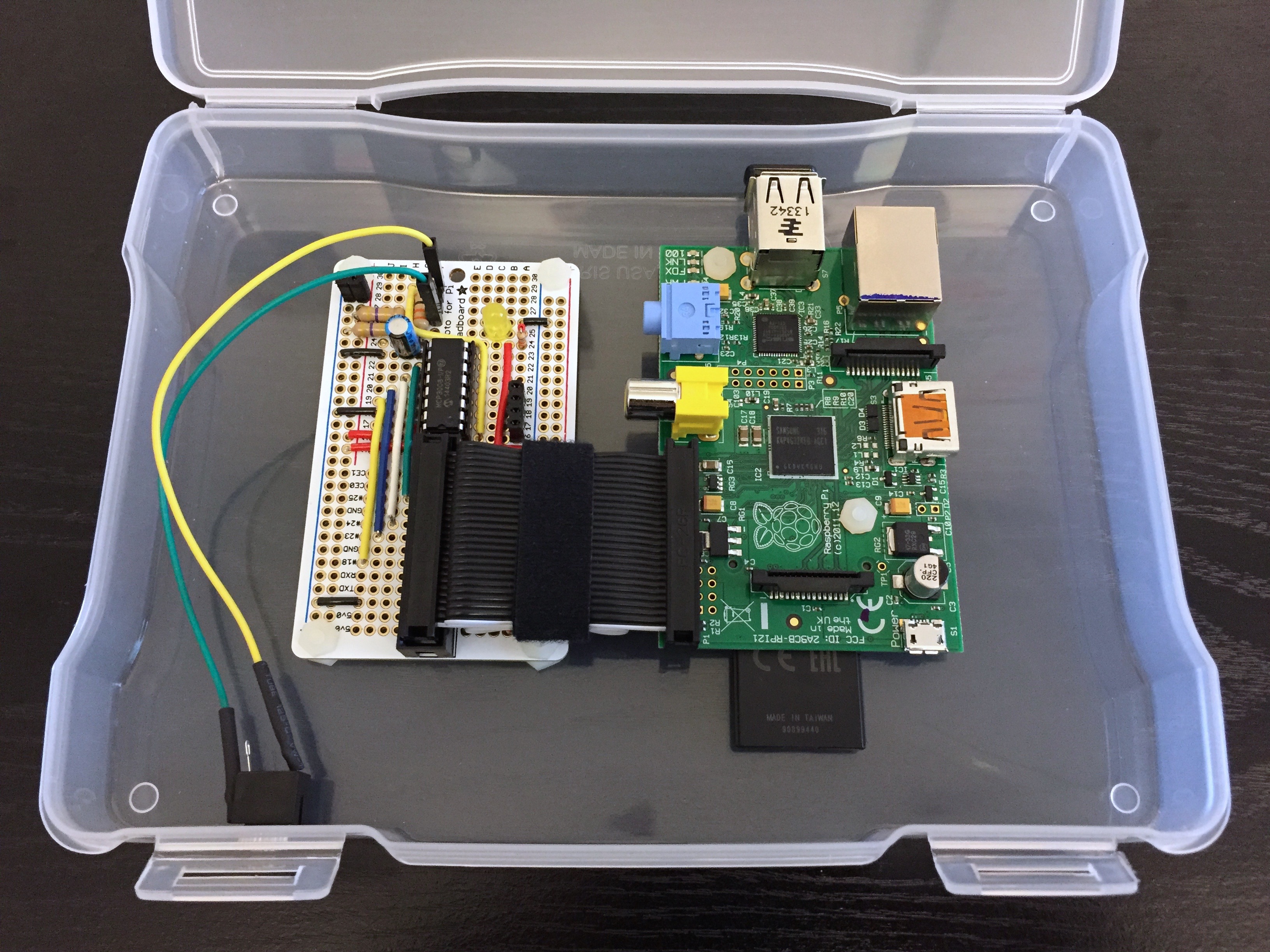
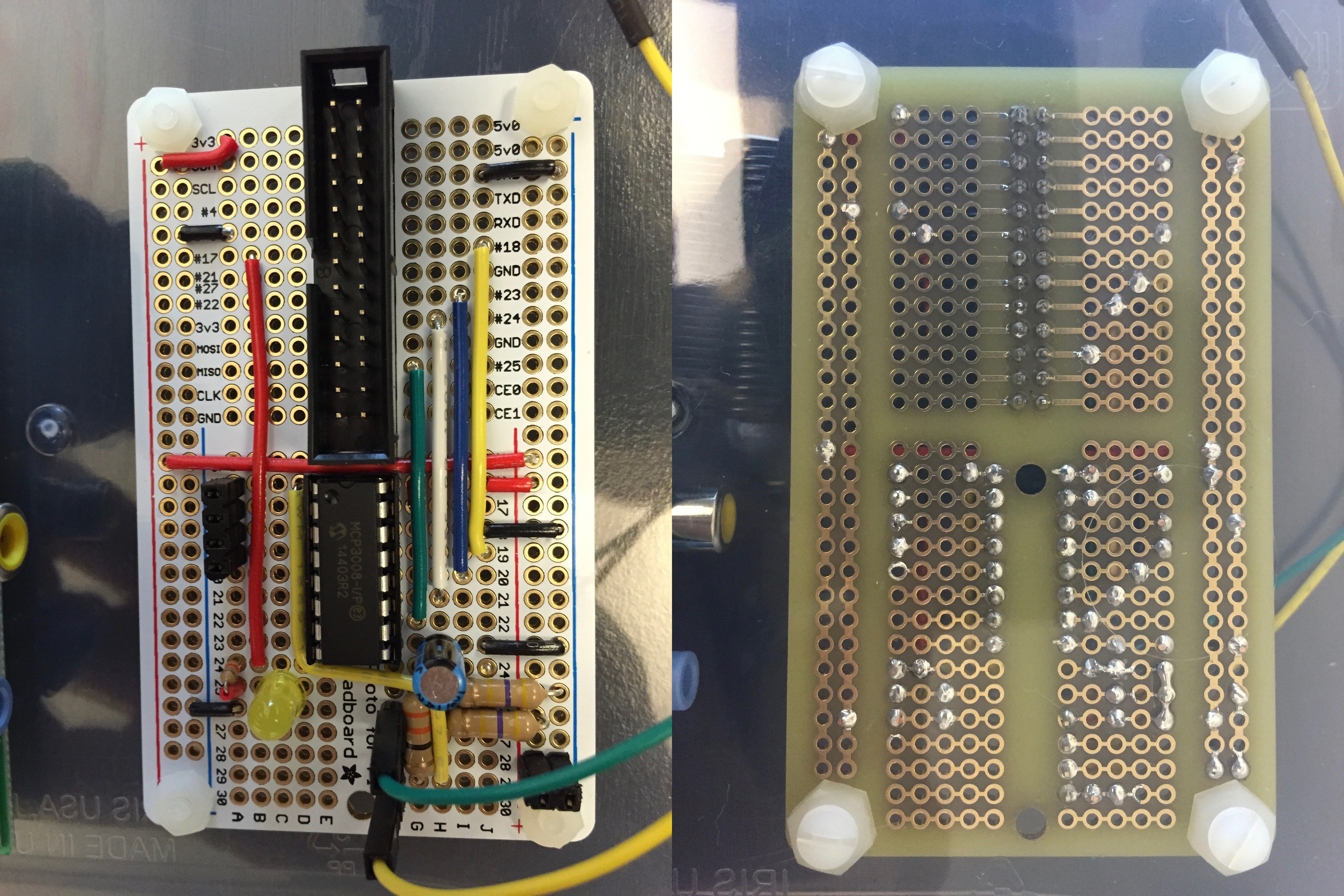
<p>We also use Slack for team chat and various notifications, so integrating the coffee machine status was a no-brainer. Using a non-invasive/inductive current sensor and Raspberry Pi, the following setup monitors coffee machine energy consumption and waits for a significant rise in current draw, followed by several minutes of sustained usage. Once a time threshold has passed, it does an HTTP POST to a Slack webhook, sleeps for about 15 minutes, then starts monitoring again. This “brewbot” code is <a href="https://github.com/command-tab/brewbot">available on GitHub</a>, and a parts list can be found below.</p>

<p><img src="/static/brewbot_full_kit.jpg" alt="Completed kit" /></p>

<p><img src="/static/brewbot_box.jpg" alt="Packaged in box" /></p>

<p><img src="/static/brewbot_adc_board.jpg" alt="ADC board" /></p>

<p>Full parts list:</p>

<ul>
  <li><a href="http://www.adafruit.com/products/856">MCP3008 8-Channel 10-Bit Analog to Digital Converter</a></li>
  <li><a href="http://www.adafruit.com/products/998">Raspberry Pi model B</a></li>
  <li><a href="http://www.adafruit.com/products/2203">16-pin IC socket</a></li>
  <li><a href="http://www.adafruit.com/products/344">Assortment of heat shrink tubing</a></li>
  <li><a href="http://www.adafruit.com/products/937">Panel mount to Micro USB adapter</a></li>
  <li><a href="https://www.sparkfun.com/products/11508">10KΩ 1/4W LED resistor</a></li>
  <li><a href="http://www.adafruit.com/products/1148">Half-size Perma-Proto Raspberry Pi Breadboard PCB Kit</a></li>
  <li><a href="https://www.sparkfun.com/products/9594">5mm Yellow LED</a></li>
  <li>1/8” panel mount audio jack</li>
  <li>10uF electrolytic decoupling capacitor</li>
  <li>33Ω 1/2W burden resistor</li>
  <li>2x 470KΩ 1/2W voltage divider resistors</li>
  <li><a href="https://www.sparkfun.com/products/11005">30A non-invasive current sensor</a></li>
  <li><a href="https://www.sparkfun.com/products/11367">22 AWG Solid Core Hook Up Wire</a></li>
  <li>5x7 photo box, from The Container Store</li>
  <li><a href="http://www.amazon.com/gp/product/B00B588HY2">8 GB Class 10 SDHC card</a></li>
  <li><a href="http://www.amazon.com/dp/B005CLMJLU">Edimax EW-7811Un Wireless Nano USB Adapter</a></li>
  <li>6x Nylon screws washers and nuts</li>
  <li><a href="http://www.monoprice.com/Product?p_id=8617">8” AC Cord Clips</a></li>
  <li><a href="http://www.monoprice.com/Product?c_id=102&amp;cp_id=10242&amp;cs_id=1024201&amp;p_id=3645&amp;seq=1&amp;format=2">HDMI to Mini HDMI adapter</a></li>
  <li><a href="http://www.monoprice.com/Product?c_id=104&amp;cp_id=10419&amp;cs_id=1041909&amp;p_id=3654&amp;seq=1&amp;format=2">6’ Mini HDMI to HDMI Cable</a></li>
  <li><a href="http://www.acehardware.com/product/index.jsp?productId=29313236">10’ USB A Male to B Male Cable</a></li>
</ul>

<p>Related reading: <a href="https://en.wikipedia.org/wiki/Hyper_Text_Coffee_Pot_Control_Protocol">Hyper Text Coffee Pot Control Protocol</a></p>]]></content><author><name></name></author><category term="projects" /><summary type="html"><![CDATA[At work, we have a coffee machine that serves dozens of people in the building, and it’s difficult to know when to come get fresh coffee. You might arrive when it’s empty and be tasked with making more, but the ideal situation is to arrive just as a fresh pot is being brewed.]]></summary></entry><entry><title type="html">GottaGo</title><link href="https://command-tab.com/2013/07/23/gottago/" rel="alternate" type="text/html" title="GottaGo" /><published>2013-07-23T00:00:00+00:00</published><updated>2013-07-23T00:00:00+00:00</updated><id>https://command-tab.com/2013/07/23/gottago</id><content type="html" xml:base="https://command-tab.com/2013/07/23/gottago/"><![CDATA[<p>Working at <a href="http://www.blackboard.com/mobile-learning/index.aspx">Blackboard Mobile</a> making unique mobile apps is fun, but occasionally it’s interesting to do something completely different at work, just to see what you can come up with. To that end, we recently hosted our first Hackathon, where small teams of co-workers had 24 straight hours to create a project of any theme using resources available inside our outside of the office, and the results would be judged by our peers. One of the other benefits of working in a growing industry is that we’re expanding our staff almost weekly. Unfortunately, though, that means that the building we’re in is less and less able to handle the increasing capacity. Specifically, the bathrooms are occupied more frequently, resulting in either a return trip to your desk only to try again later, or an awkward wait of unknown duration.</p>

<p><img src="/static/gottago_header.jpg" alt="header" /></p>

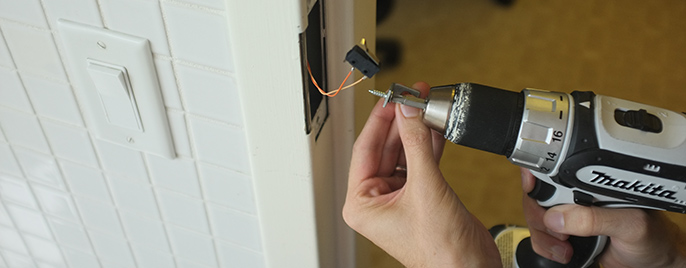
<p>Working with <a href="https://twitter.com/JMT3">Joe Taylor</a> and <a href="https://twitter.com/eclittlejohn">Eric Littlejohn</a>, our Hackathon project set out to make the office bathroom availability more visible and accessible through a combination of hardware and software. The piece of the project that lets this all work is a microswitch installed inside each door jamb, such that when the locking bolt is engaged, the switch is tripped. That way, we can do anything with resulting data, knowing that when the door is locked, the room is in use. Running wire down through the hollow metal trim was tedious and time consuming, and involved a lot of false starts and fishing around with a straightened coat hanger, but we finally got a run of wire inside each frame.</p>

<p><img src="/static/gottago_switch.jpg" alt="door switch" /></p>

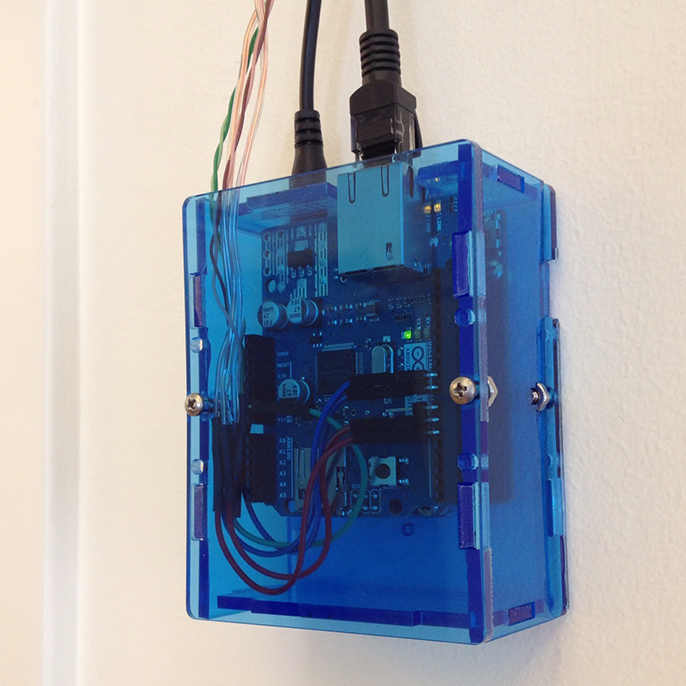
<p>On each office floor there are two bathrooms side by side, and the pair of switches inside the door jambs are wired to a single <a href="http://arduino.cc/">Arduino</a> fitted with an <a href="http://arduino.cc/en/Main/ArduinoEthernetShield">Ethernet Shield</a> for network connectivity. The Arduino samples the switches many times per second, providing near-instant feedback.</p>

<p><img src="/static/gottago_arduino.jpg" alt="arduinno board" /></p>

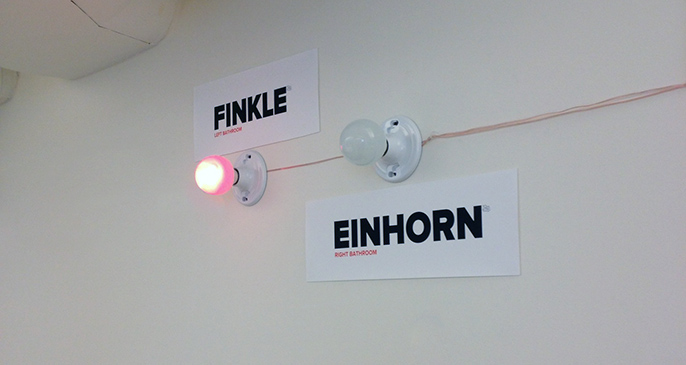
<p>After <a href="http://www.labbookpages.co.uk/electronics/debounce.html">debouncing</a> the switch input signal over about 50 milliseconds, the Arduino waits for a definitive change in state – from locked to unlocked, or unlocked to locked – before illuminating LED lights on the wall.</p>

<p><img src="/static/gottago_lights.jpg" alt="wall lights" /></p>

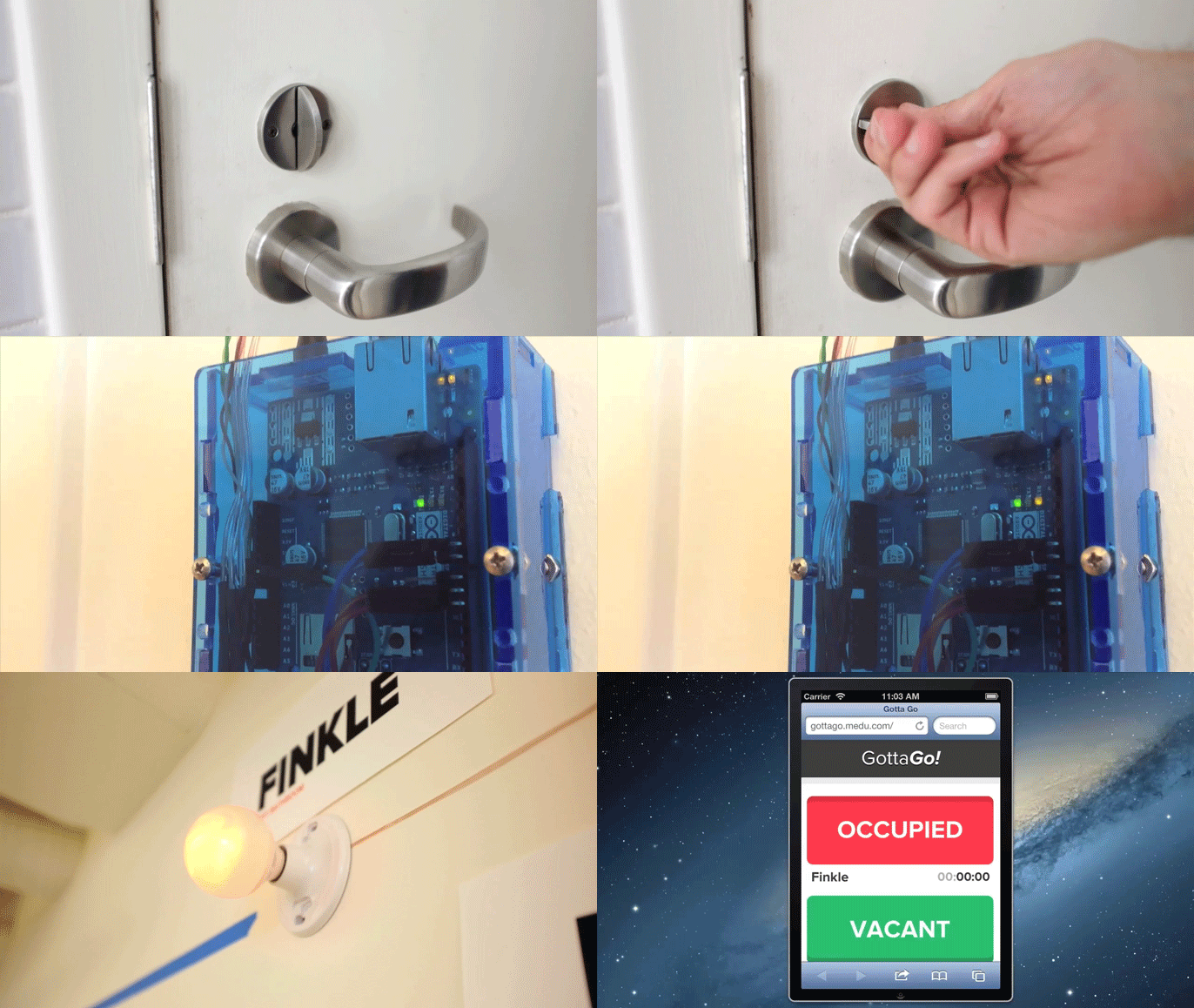
<p>After the light corresponding to the now-occupied bathroom is lit, the Arduino also performs an HTTP POST, sending the event details (floor level, which room, and current occupancy state) to an in-house webserver running Node.js and MongoDB. The webserver records the data and makes it visible on a web page for viewers to check the availability digitally, for those who can’t see the wall mounted lights from their seating position.</p>

<p><img src="/static/gottago.gif" alt="event sequence animation" /></p>

<p>If you’d like to employ a project like this, the code we hacked together is <a href="https://github.com/BbMobile/GottaGo">available on GitHub</a>, and the wiring is rather straightforward:</p>

<ul>
  <li>All components share a common ground</li>
  <li>LED anodes are wired to <code class="language-plaintext highlighter-rouge">room_a_led_pin</code> and <code class="language-plaintext highlighter-rouge">room_b_led_pin</code> and brought high when doors are locked, and low when unlocked</li>
  <li>Switches bring <code class="language-plaintext highlighter-rouge">room_a_switch_pin</code> and <code class="language-plaintext highlighter-rouge">room_b_switch_pin</code> low when triggered, and the Arduino uses the <code class="language-plaintext highlighter-rouge">INPUT_PULLUP</code> pinMode for the unlocked state</li>
</ul>

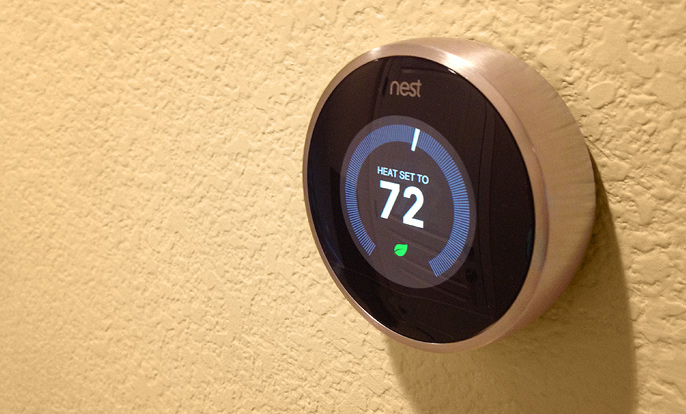
<p>Our Hackathon project came in at second place, losing to an as-yet-unannounced software project, but we had a lot of fun staying up and hacking all night!</p>]]></content><author><name></name></author><category term="projects" /><summary type="html"><![CDATA[Working at Blackboard Mobile making unique mobile apps is fun, but occasionally it’s interesting to do something completely different at work, just to see what you can come up with. To that end, we recently hosted our first Hackathon, where small teams of co-workers had 24 straight hours to create a project of any theme using resources available inside our outside of the office, and the results would be judged by our peers. One of the other benefits of working in a growing industry is that we’re expanding our staff almost weekly. Unfortunately, though, that means that the building we’re in is less and less able to handle the increasing capacity. Specifically, the bathrooms are occupied more frequently, resulting in either a return trip to your desk only to try again later, or an awkward wait of unknown duration.]]></summary></entry><entry><title type="html">Adventures with Nest</title><link href="https://command-tab.com/2013/06/06/adventures-with-nest/" rel="alternate" type="text/html" title="Adventures with Nest" /><published>2013-06-06T00:00:00+00:00</published><updated>2013-06-06T00:00:00+00:00</updated><id>https://command-tab.com/2013/06/06/adventures-with-nest</id><content type="html" xml:base="https://command-tab.com/2013/06/06/adventures-with-nest/"><![CDATA[<p>I recently purchased a pair of <a href="https://nest.com">Nest Learning Thermostats</a> for my new home. Compared to the white brick style Honeywell thermostats that came with the place, the Nest is so much more advanced. It does temperature learning, auto-away, and remote control over Wi-Fi from the web and iOS devices. It also has a color LCD and just generally looks beautiful on the wall with its brushed stainless steel housing.</p>

<p><img src="/static/nest.jpg" alt="nest thermostat" /></p>

<p>Installing the Nest is pretty straightforward with a modern forced air heating and cooling system:</p>

<ul>
  <li>Remove the old thermostat and mounting plate from the wall</li>
  <li>Disconnect the wires</li>
  <li>Patch and paint any holes</li>
  <li>Install the Nest mounting base and connect the wires</li>
  <li>Pop the Nest onto the base and configure the software</li>
</ul>

<p>My initial install went well physically, but not long after, I discovered that the Nest would regularly run out of battery power. I quickly learned that due to how the HVAC circuits are arranged, the Nest can only draw power while the system is running. When the system is not busy heating, cooling, or running the fan, the Nest is left to run under its own battery power. And in sunny California during the springtime, the system doesn’t run often enough to let the Nest keep a charge. Several times per day, I would have to unplug the Nest from its base and charge it over micro USB. Not a great solution.</p>

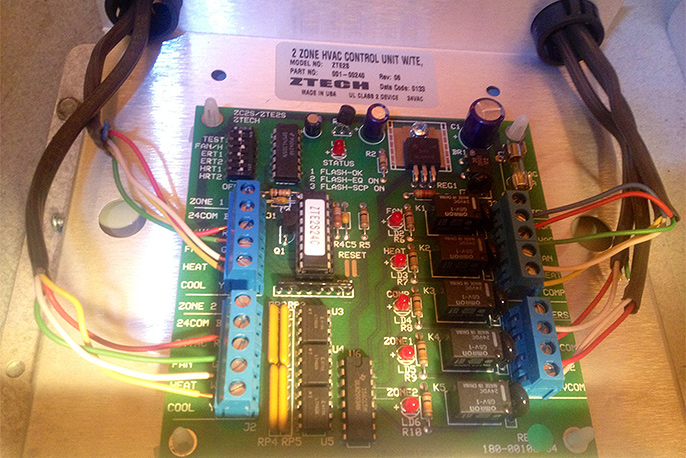
<p>Reading more about the Nest and HVAC circuitry, I found that there is a solution for situations like this. A “common wire” that provides a path back to the HVAC controller would allow the Nest to draw the power it needs while not running any systems. As luck would have it, my system provided this common wire, but connecting it to the Nest had no effect on the battery. More telling was the fact that the Nest did not detect that the wire was connected.</p>

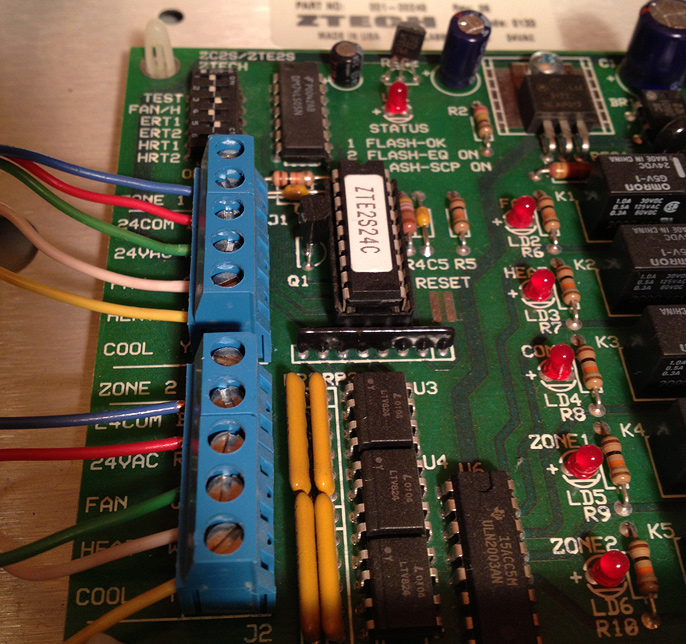
<p>So, I decided to find out what was at the other end of that common wire. I put up a ladder and ventured into the attic of my home and scouted around the furnace. On top of it, inside an easily-opened metal enclosure, was the thermostat controller, a ZTech ZTE2S. Double checking the <a href="/static/zte2s_wiring.pdf">wiring diagram</a> and comparing it with the wires on the left (coming from the Nests), it’s clear that the blue common wire is simply not connected to the controller. In the photo below, you can see that it’s clipped short, close to the brown jacket covering the bundle of five wires.</p>

<p><img src="/static/nest_before.jpg" alt="wiring before with blue wire disconnected" /></p>

<p>Reconnecting the wire was a matter of disconnecting the wires that were already connected, snipping them all to the same length, and stripping a little plastic off the end so that all five can be connected to the HVAC controller.</p>

<p><img src="/static/nest_after.jpg" alt="wiring after with blue wire connected" /></p>

<p>A few hours after leaving the Nest installed with the common wire attached and the HVAC controller all closed up, its battery has fully charged and the features work great.</p>]]></content><author><name></name></author><category term="docs" /><summary type="html"><![CDATA[I recently purchased a pair of Nest Learning Thermostats for my new home. Compared to the white brick style Honeywell thermostats that came with the place, the Nest is so much more advanced. It does temperature learning, auto-away, and remote control over Wi-Fi from the web and iOS devices. It also has a color LCD and just generally looks beautiful on the wall with its brushed stainless steel housing.]]></summary></entry><entry><title type="html">Simulating Slow Internet for iOS Testing</title><link href="https://command-tab.com/2011/05/12/simulating-slow-internet-for-ios-testing/" rel="alternate" type="text/html" title="Simulating Slow Internet for iOS Testing" /><published>2011-05-12T00:00:00+00:00</published><updated>2011-05-12T00:00:00+00:00</updated><id>https://command-tab.com/2011/05/12/simulating-slow-internet-for-ios-testing</id><content type="html" xml:base="https://command-tab.com/2011/05/12/simulating-slow-internet-for-ios-testing/"><![CDATA[<p>Apple’s iOS Simulator is an acceptable environment for testing development code, but when users purchase your finished app from the App Store, they’ll be running it on real hardware, particularly on networks that are likely much less reliable than your home or office internet.</p>

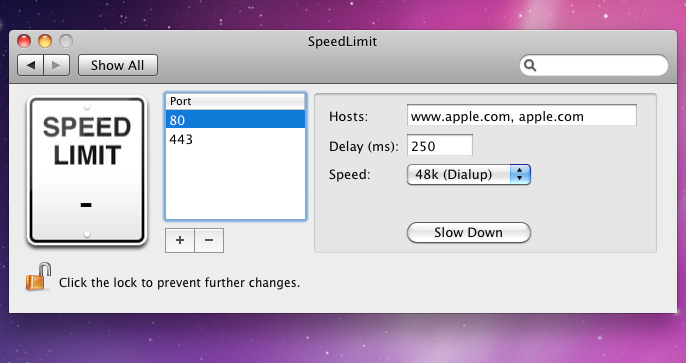
<p>To ensure your app performs well under real-world conditions, you can load up the code on a device and go outside, but then you can’t debug as easily. And even if you bring your MacBook Air with you, what if your Verizon iPhone is everything you hoped, and it performs admirably on the worst of days? To get around all of this, you can approximate an unreliable network with <a href="http://mschrag.github.com">SpeedLimit</a>. SpeedLimit is a System Preferences pane for intentionally and selectively slowing down specific ports and domains.</p>

<p><img src="/static/speedlimit.jpg" alt="speedlimit window" /></p>

<p>Download and install SpeedLimit, add one or more hosts (separated by commas, as seen above), select a target speed, and click Slow Down. Subsequent network requests matching the criteria you set will be throttled, giving you time to go all out testing your app’s performance and error handling. Does it crash when users hit the Back button while a UITableView is loading? Does it lock the UI while downloading avatars or thumbnails? SpeedLimit lets you find out, and be confident in your networking code.</p>]]></content><author><name></name></author><summary type="html"><![CDATA[Apple’s iOS Simulator is an acceptable environment for testing development code, but when users purchase your finished app from the App Store, they’ll be running it on real hardware, particularly on networks that are likely much less reliable than your home or office internet.]]></summary></entry><entry><title type="html">How to Find the Right Windows Driver</title><link href="https://command-tab.com/2009/09/14/how-to-find-the-right-windows-driver/" rel="alternate" type="text/html" title="How to Find the Right Windows Driver" /><published>2009-09-14T00:00:00+00:00</published><updated>2009-09-14T00:00:00+00:00</updated><id>https://command-tab.com/2009/09/14/how-to-find-the-right-windows-driver</id><content type="html" xml:base="https://command-tab.com/2009/09/14/how-to-find-the-right-windows-driver/"><![CDATA[<p>When setting up a new Windows machine, whether it’s Windows 2000 all the way up through Windows 7, you’ll occasionally run into an issue where you need drivers for a system or PCI device that you just can’t seem to find. To make matters worse, you don’t know which company made the device, so you don’t even know where to start looking for drivers. Should you go to Dell’s site? The motherboard manufacturer? Persistent “Unknown device” entries in the Windows Device Manager are a plague upon even the most seasoned techs. Here’s a tip to get your driver hunt moving in the right direction.</p>

<p><strong>Find Out Who Made the Device</strong></p>

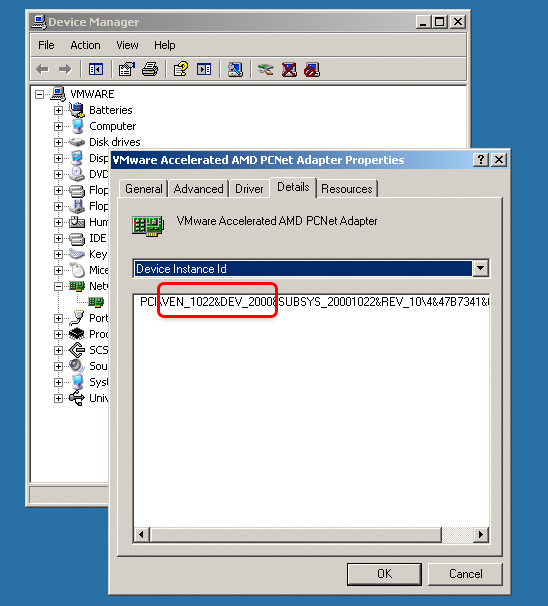
<p>Figuring out which company made the device(s) in question is the first step towards getting it working. Start by opening the Windows Device Manager. My preferred quick way of doing this is clicking Start, Run, type <code class="language-plaintext highlighter-rouge">devmgmt.msc</code>, and pressing Enter. Once there, choose the device in question and right click it, and select Properties. Select the Details tab to see something like the view below:</p>

<p><img src="/static/windows_device_manager.jpg" alt="windows device manager" /></p>

<p>Note the PCI <code class="language-plaintext highlighter-rouge">VEN</code> and <code class="language-plaintext highlighter-rouge">DEV</code> 4-character identifiers. PCI, USB, and many other system devices have Vendor and Device IDs. The Vendor ID is specific to the manufacturer, like Broadcom or nVIDIA. The Device ID is specific to the particular make or model of device you have. These are expressed in hexadecimal (0 through 9 plus A through F), so don’t be surprised to see letters there, as well. Some common Vendor IDs are <code class="language-plaintext highlighter-rouge">8080</code> and <code class="language-plaintext highlighter-rouge">8086</code> for Intel, <code class="language-plaintext highlighter-rouge">0A5C</code> for Broadcom, <code class="language-plaintext highlighter-rouge">10DE</code> for nVIDIA, <code class="language-plaintext highlighter-rouge">1002</code> for ATI, and <a href="http://www.pcidatabase.com/reports.php?type=tab-delimeted">many more</a>.</p>

<p><strong>Look Up Vendor and Device IDs</strong></p>

<p>A common way to express both the Vendor and Device IDs in a single string is 1022:2000, Vendor ID first. Combine your Vendor and Device IDs in this manner, and wrap it with quotes: “1022:2000”. Google that, and you should quickly figure out who made your “Unknown device” and what model it is. With this knowledge, you can either find the appropriate driver on your computer manufacturer’s website (Dell makes a good note of which manufacturer’s devices they use for a particular system), or you can visit the device manufacturer’s website directly.</p>

<p>I hope this information can help those looking to simply get their hardware working under Windows, whether it’s running on a Mac or PC.</p>]]></content><author><name></name></author><summary type="html"><![CDATA[When setting up a new Windows machine, whether it’s Windows 2000 all the way up through Windows 7, you’ll occasionally run into an issue where you need drivers for a system or PCI device that you just can’t seem to find. To make matters worse, you don’t know which company made the device, so you don’t even know where to start looking for drivers. Should you go to Dell’s site? The motherboard manufacturer? Persistent “Unknown device” entries in the Windows Device Manager are a plague upon even the most seasoned techs. Here’s a tip to get your driver hunt moving in the right direction.]]></summary></entry><entry><title type="html">MacAlly IceKey USB 2.0</title><link href="https://command-tab.com/2009/07/05/macally-icekey-usb-2-0/" rel="alternate" type="text/html" title="MacAlly IceKey USB 2.0" /><published>2009-07-05T00:00:00+00:00</published><updated>2009-07-05T00:00:00+00:00</updated><id>https://command-tab.com/2009/07/05/macally-icekey-usb-2-0</id><content type="html" xml:base="https://command-tab.com/2009/07/05/macally-icekey-usb-2-0/"><![CDATA[<p>MacAlly has been producing the same IceKey keyboard since 2003, and while it’s a solid performer featuring comfortable low profile scissor keys and extra USB ports, it still ships with a maddeningly slow internal USB 1.1 hub. While this early USB specification is plenty fast for a keyboard alone, it throttles back speeds of all attached devices like flash drives, iPods, and digital cameras. Copying an music album or two can take several minutes over USB 1.1, whereas today’s USB 2.0 takes only seconds. With USB 2.0 as today’s ubiquitous standard and USB 3.0 just around the corner, it’s disappointing that MacAlly has yet to update the IceKey to include a faster hub. Luckily, you can take matters into your own hands. Here’s how to install a high speed hub inside the keyboard while maintaining MacAlly’s elegant factory appearance.</p>

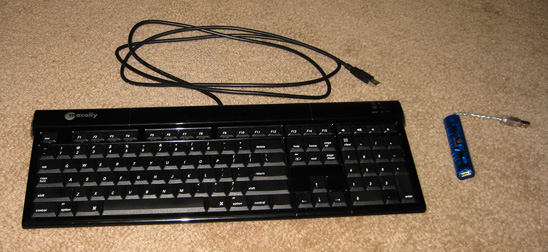
<p><img src="/static/macally_icekey_start.jpg" alt="macally icekey keyboard" /></p>

<p><strong>What You’ll Need</strong></p>

<ul>
  <li>a MacAlly IceKey</li>
  <li>a small, narrow USB hub (a cheap Targus hub worked fine for me)</li>
  <li>a screwdriver set</li>
  <li>a soldering iron, solder, and spare wire</li>
  <li>a pocket knife (I’m not sure any project I’ve done <em>didn’t</em> require this…)</li>
</ul>

<p><strong>Open the Hub</strong></p>

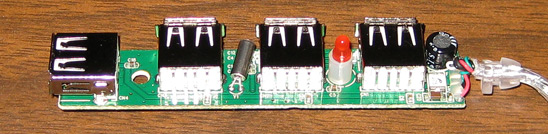
<p>USB hubs generally aren’t too complicated to open, and this Targus on is no exception. A single screw on the underside holds together the hub’s two plastic halves, which snap apart with little effort. Write a note or take a picture to document the wire colors and order relevant to the orientation of the board inside – it will come in handy later.</p>

<p><img src="/static/macally_usb_hub_board.jpg" alt="usb hub board" /></p>

<p><strong>Open the Keyboard</strong></p>

<p>The MacAlly IceKey is slightly trickier to get apart, but not much. Remove all the obvious screws on the bottom of the keyboard, including the one under the “Do Not Remove”/Quality Control/Warranty sticker. Then, flip open the pivoting feet to expose two more screws covered by a protective piece of rubber. The final two screws are under the front rubber feet.</p>

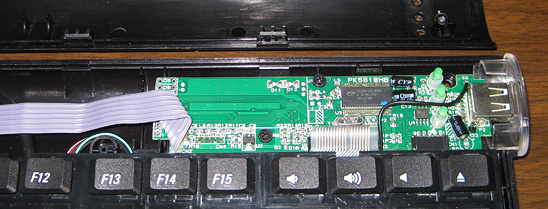
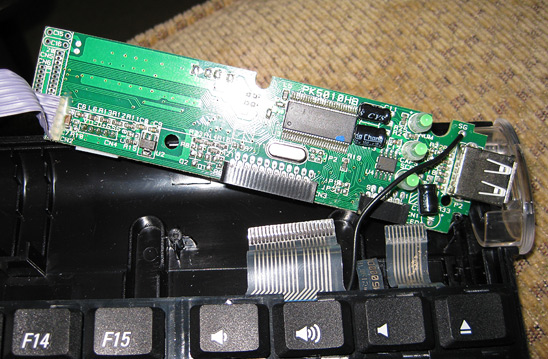
<p>Starting with the keyboard upright and facing you, begin unsnapping the plastic hooks around the perimeter starting at the front middle. A plastic pry tool might come in handy, but isn’t required. Once the top is removed, you can clearly see all the important electronics, including a very common Cypress USB controller chip.</p>

<p><img src="/static/macally_keyboard_controller.jpg" alt="keyboard controller" /></p>

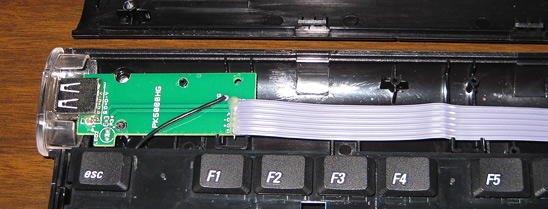
<p><img src="/static/macally_keyboard_leftport.jpg" alt="left port" /></p>

<p><strong>Test Fit Everything</strong></p>

<p>Just to make sure the rest of this modification is physically possible, fit the USB hub board in the open space at the top of the keyboard and set the keyboard bezel on top. Luckily, the IceKey has plenty of room to spare. I was planning to have to remove the USB ports from the hub board to make everything fit, but there was so much extra space that I didn’t even have to go to that length.</p>

<p><strong>Unhook the Keyboard</strong></p>

<p>Carefully pull the keyboard ribbon cables straight away from their matching plugs on the controller board. Gently flip the keyboard pad over, and unscrew the two short ground wires to completely free the keyboard keys from the plastic housing. Set it aside for later; it does not need to be modified – all the action happens on the two remaining circuit boards. Unscrew both boards to get at the backs of each.</p>

<p><img src="/static/macally_keyboard_ribbon_cables.jpg" alt="ribbon cables" /></p>

<p><strong>Cut Wires</strong></p>

<p>Cut the gray ribbon that leads from the controller board to the left port. Since that wire only provides USB 1.1 speed, we won’t be using it. You’ll note that it has two extra wires that run to an unpopulated LED on the left board, so we can skip those when doing the re-wiring. (I wonder what MacAlly had in store for that, or if this keyboard is a “port” from another language or something?)</p>

<p>Unplug the USB cord from the controller board and cut off the connector. This cord needs to run to the input on the new USB hub, and not to the input on the keyboard controller board where it currently connects.</p>

<p><strong>Cut Traces</strong></p>

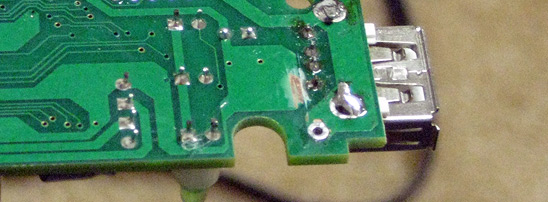
<p>Since the right port also needs USB 2.0 speeds, it too will need to be disconnected from its USB 1.1 source. However, it is soldered directly onto the controller board and is effectively hard-wired into the slowness. This is perhaps the trickiest part of the whole project: desolder the USB connector and use a knife to scrape away the traces that run to the port. Some are on top of the board, and some are on the bottom. (You might be able to get away with cutting the traces without removing the port, as a little bit of the traces are exposed on the top before routing into electronic components, but you’ll want to test with a multimeter and make sure you’ve done this successfully.) Once all four traces to the port are cut, re-solder the USB port in place (if you removed it).</p>

<p><img src="/static/macally_usb_traces_cut.jpg" alt="cut traces" /></p>

<p><strong>Re-wire the Keyboard Controller and Ports</strong></p>

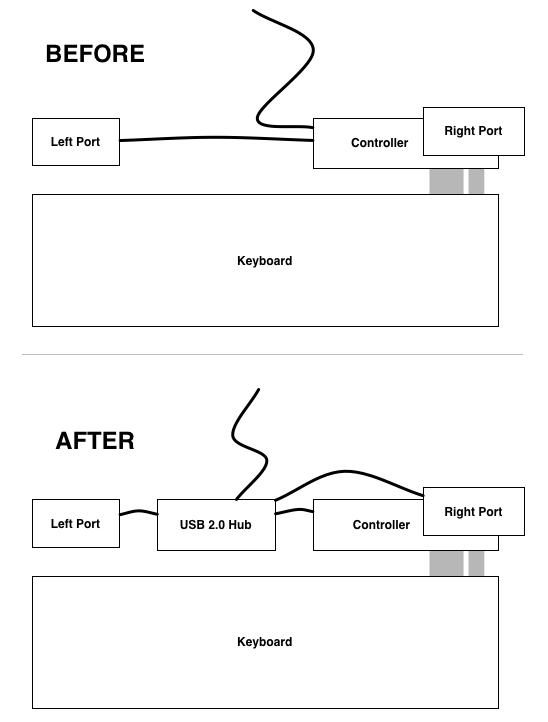
<p>Here’s a simple before and after block diagram to help your wiring layout:</p>

<p><img src="/static/macally_icekey2_diagram.gif" alt="wiring diagram" /></p>

<p><strong>Solder Keyboard Cord to Hub Input</strong></p>

<p>Strip about an inch of plastic from the cut end of the keyboard cord to expose its individual wires, and strip just a millimeter or two from each of those. Using your note from earlier, solder the keyboard wires to the matching USB hub input connections. On this Targus hub, the wires were in the same order as the standard <a href="https://images.google.com/images?q=USB%20pinout">USB pinout</a>.</p>

<p><strong>Solder Keyboard Controller to a Hub Port</strong></p>

<p>Solder four wires from the keyboard input port (where the cord originally connected to) to one of the USB hub ports, effectively making the keyboard controller into one of four devices on the hub. Previously, the keyboard supplied its own hub, but we’re bypassing it altogether. Luckily, most everything is either color coded or silkscreen labeled on the circuit boards (<code class="language-plaintext highlighter-rouge">V/5V</code> is red, <code class="language-plaintext highlighter-rouge">D-</code> is green, <code class="language-plaintext highlighter-rouge">D+</code> is white, and <code class="language-plaintext highlighter-rouge">G/GND</code> is black).</p>

<p><strong>Solder Keyboard USB Ports to Hub Ports</strong></p>

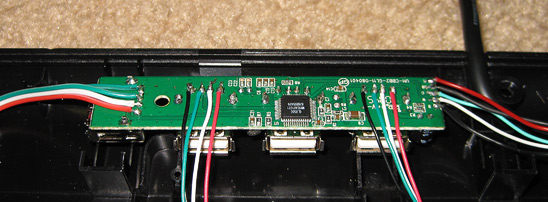
<p>Solder wire from the left USB port board to another free USB hub port, making sure to get the order correct. With the traces cut on the right port, run wire from the connections under the board to yet another free hub port. You should end up with a hub layout like this:</p>

<p><img src="/static/macally_keyboard_hub_wires.jpg" alt="hub wires" /></p>

<p><strong>Test and Close It Up</strong></p>

<p>With each new component wired up, double-check your connections and plug it in. Initially, my first test failed and Windows complained about a malfunctioning USB device (I tested it on an old PC, just in case I shorted out the computer’s USB controller. I’d rather fry an old computer than my new iMac!) The key to making everything work properly was to reconnect those two shared ground wires from early on – the keyboard must have a common ground with the controller and hub!</p>

<p><img src="/static/macally_keyboard_test.jpg" alt="completed wiring" /></p>

<p>Once it works, secure all the wires and boards. I used a few short pieces of electrical tape to stop everything from bouncing around, too. Snap the plastic top back on, replace all the screws, and enjoy your USB 2.0 MacAlly IceKey!</p>]]></content><author><name></name></author><category term="projects" /><summary type="html"><![CDATA[MacAlly has been producing the same IceKey keyboard since 2003, and while it’s a solid performer featuring comfortable low profile scissor keys and extra USB ports, it still ships with a maddeningly slow internal USB 1.1 hub. While this early USB specification is plenty fast for a keyboard alone, it throttles back speeds of all attached devices like flash drives, iPods, and digital cameras. Copying an music album or two can take several minutes over USB 1.1, whereas today’s USB 2.0 takes only seconds. With USB 2.0 as today’s ubiquitous standard and USB 3.0 just around the corner, it’s disappointing that MacAlly has yet to update the IceKey to include a faster hub. Luckily, you can take matters into your own hands. Here’s how to install a high speed hub inside the keyboard while maintaining MacAlly’s elegant factory appearance.]]></summary></entry><entry><title type="html">Boot Camp Drivers for iMac (Early 2009)</title><link href="https://command-tab.com/2009/06/14/boot-camp-drivers-for-imac-early-2009/" rel="alternate" type="text/html" title="Boot Camp Drivers for iMac (Early 2009)" /><published>2009-06-14T00:00:00+00:00</published><updated>2009-06-14T00:00:00+00:00</updated><id>https://command-tab.com/2009/06/14/boot-camp-drivers-for-imac-early-2009</id><content type="html" xml:base="https://command-tab.com/2009/06/14/boot-camp-drivers-for-imac-early-2009/"><![CDATA[<p>Apple’s newest iMacs are a fast set of machines and run Windows faster than any PC I’ve ever used, but unfortunately, Apple has yet to update Boot Camp with the required drivers to support the latest and greatest components. Mac OS X ships with the necessary software and works as expected, but Windows XP is met with some trouble. Right away, you’ll notice that your graphics resolution is set to a paltry 800x600, and you have no sound output as well. Here’s how to get those systems working until Apple can provide an “official” fix:</p>

<p><strong>Graphics Drivers</strong></p>

<p>Visit <a href="http://www.nvidia.com">nVidia</a> and download the “GeForce 9M Series (Notebooks)” driver package, as this is graphics chipset in the Early 2009 iMacs. Run the downloaded setup utility, next-next-nexting your way through the steps, and reboot at the end when prompted. Upon restart, you’ll be able to properly max out your display to the iMac’s native resolution.</p>

<p><strong>Audio Drivers</strong></p>

<p>Boot Camp 2.1 actually ships with RealTek HD audio drivers, as evidenced by the lack of a yellow exclamation mark for this system in Windows’ Device Manager, but they don’t seem to work properly, since there’s no sound output. Visit <a href="http://www.realtek.com.tw/downloads">RealTek</a> and download the “High Definition Audio Codecs” driver package for your OS. In this instance, I downloaded “Windows 2000, Windows XP/2003(32/64 bits) Driver only (Executable file)”, since I’m running Windows XP Pro SP2. Run this setup utility as well, rebooting again when done. After restarting, you should be greeted with Windows’ standard login sound, confirming the install worked.</p>

<p><strong>Update:</strong> The Mac OS X 10.6 Snow Leopard disc includes Boot Camp drivers for these iMacs. The Snow Leopard disc is a hybrid image: it provides the Mac OS X installer when viewed under a Mac OS X system, but shows Windows drivers when viewed in Windows. Just run the setup in Windows right off the disc, and you should be set.</p>]]></content><author><name></name></author><summary type="html"><![CDATA[Apple’s newest iMacs are a fast set of machines and run Windows faster than any PC I’ve ever used, but unfortunately, Apple has yet to update Boot Camp with the required drivers to support the latest and greatest components. Mac OS X ships with the necessary software and works as expected, but Windows XP is met with some trouble. Right away, you’ll notice that your graphics resolution is set to a paltry 800x600, and you have no sound output as well. Here’s how to get those systems working until Apple can provide an “official” fix:]]></summary></entry><entry><title type="html">Dig into iPhone Apps</title><link href="https://command-tab.com/2009/03/22/dig-into-iphone-apps/" rel="alternate" type="text/html" title="Dig into iPhone Apps" /><published>2009-03-22T00:00:00+00:00</published><updated>2009-03-22T00:00:00+00:00</updated><id>https://command-tab.com/2009/03/22/dig-into-iphone-apps</id><content type="html" xml:base="https://command-tab.com/2009/03/22/dig-into-iphone-apps/"><![CDATA[<p>So you’re curious about the contents of iPhone and iPod Touch apps, including artwork, sounds, and more? Here’s how to dig into an application and see what goodies are hidden inside. Standard copyrights still apply.</p>

<p><strong>Sync Your Apps with iTunes</strong></p>

<p>Assuming you already have the target application on your iPhone or iPod Touch (just “iPhone” from this point forward for brevity’s sake), simply sync your iPhone with your Mac or PC. Doing so will backup your device and transfer any purchased applications in both directions. With the target application now on your computer, navigate to your iTunes “Mobile Applications” folder, where iTunes typically does its own file housekeeping. Under Mac OS X, the default location is <code class="language-plaintext highlighter-rouge">/Users/yourname/Music/iTunes/Mobile Applications/</code>.</p>

<p><strong>Unzip an App</strong></p>

<p>Copy your target <code class="language-plaintext highlighter-rouge">.ipa</code>-suffixed application to a different location, ensuring that the original stays in the Mobile Applications folder to keep iTunes happy. To get inside the application, rename its extension to <code class="language-plaintext highlighter-rouge">.zip</code>. Open the zip file, and you will have access to the guts of the app (except the source code, of course).</p>

<p><strong>High-res App Artwork</strong></p>

<p>Directly inside the unzipped application folder, you’ll find a file named <code class="language-plaintext highlighter-rouge">iTunesArtwork</code>, with no extension. A hex editor revealed that the file is typically a jpeg image, so rename it to include <code class="language-plaintext highlighter-rouge">.jpg</code> at the end, and you’ll end up with the same 512x512 pixel artwork displayed by iTunes when browsing downloaded Applications. To get at other resources, open up the adjacent “Payload” folder, and you’ll find a <code class="language-plaintext highlighter-rouge">.app</code> file – the application bundle that runs on the iPhone. Right- or Control-click on the <code class="language-plaintext highlighter-rouge">.app</code>, and choose “Show Package Contents” to open up the bundle.</p>

<p><strong>Sounds</strong></p>

<p>Sounds are typically found among the many resources directly inside the application as files with extensions like <code class="language-plaintext highlighter-rouge">.caf</code>, <code class="language-plaintext highlighter-rouge">.mp3</code>, <code class="language-plaintext highlighter-rouge">.aif</code>, and <code class="language-plaintext highlighter-rouge">.m4a</code>. At this point, the organizational structure is up to the application’s developer, so you may need to look around a little. Leopard’s QuickLook feature is a boon in times like this, helping assess a file’s purpose without opening half a dozen applications.</p>

<p><strong>Other Graphics</strong></p>

<p>Also nestled inside iPhone applications are many of the graphics used throughout the app. It’s possible that some may be drawn by code, but complex graphics are generally stored as images. However, viewing the images isn’t as easy as renaming the files as before. This will be a bit trickier, as the iPhone works some magic on the images before finishing the app build process, leaving images in an iPhone-optimized state. Fortunately, the process can be reversed with a little bit of Terminal trickery:</p>

<ol>
  <li>Copy all <code class="language-plaintext highlighter-rouge">.png</code> images to a new folder elsewhere. Images of other formats (<code class="language-plaintext highlighter-rouge">.jpg</code>, <code class="language-plaintext highlighter-rouge">.gif</code>, etc.) should be readily viewable.</li>
  <li>Download David Watanabe’s <a href="http://www.newsfirex.com/blog/?p=176">modified iPhonePNG</a> command-line application, unzip the archive, and open up Terminal from your /Applications/Utilities folder.</li>
  <li>Type <code class="language-plaintext highlighter-rouge">cd </code>, then drop the iPhonePNG folder into the Terminal, and tap Return to switch to that folder.</li>
  <li>Type <code class="language-plaintext highlighter-rouge">./iPhonePNG </code>, drop the folder of encoded images into the Terminal, and tap Return to decode the whole folder full of images.</li>
  <li>The output folder sites beside iPhonePNG, so type <code class="language-plaintext highlighter-rouge">open .</code> and tap Return (open space dot) to open the current folder (a dot, in Unix terms) in the Finder. Open the decoded images folder and have a look around!</li>
</ol>]]></content><author><name></name></author><summary type="html"><![CDATA[So you’re curious about the contents of iPhone and iPod Touch apps, including artwork, sounds, and more? Here’s how to dig into an application and see what goodies are hidden inside. Standard copyrights still apply.]]></summary></entry></feed>